
Court e-filing software for lawyers in China
Fills in the filing form.
You submit.
For a single case, drop in ID cards, IOUs, contracts, bank transfer records or a complaint you have already written. Tingping recognises each document, fills in the parties and the facts, and works out interest and the amount in dispute. For dozens or hundreds of cases, import one Excel sheet. It then fills in each field and uploads the materials on China's national online court filing platform (人民法院在线服务平台). It stops before “Submit”. You check the page and submit it yourself.
Please note: the software interface is in Chinese, and Tingping works only with courts in mainland China through the national online court filing platform.
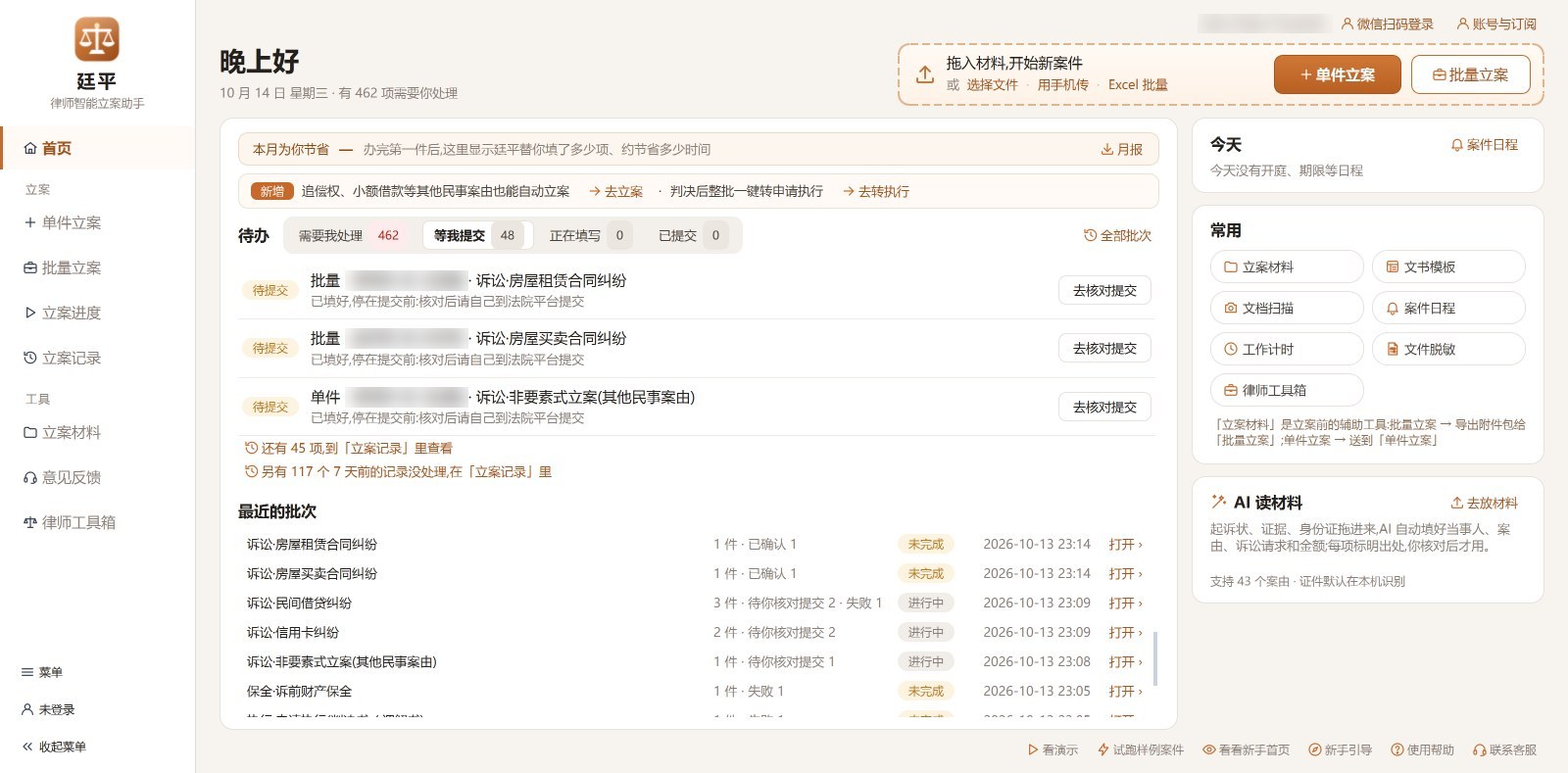
- 33structured civil first-instance case types, plus enforcement applications and pre-litigation property preservation; any other civil case via standard filing
- 3,494courts, suggested by the defendant's address and searchable by Chinese name or pinyin initials
- 114 → 16measured on a bank-loan case: the platform asks for 114 fields; after adding the documents the lawyer fills in 16
- 0automatic submissions. Only the lawyer clicks “Submit”, in the browser
Where filing time goes
Each of these tasks is simple. The trouble is volume, repetition, and requirements that vary from court to court. The left column is how it is done today; the right column is how Tingping handles it.
100+ fields per case on the platform
Copying ID numbers and addresses by hand, recalculating amounts and dates, switching between Word, Excel and the browser.
Drop the documents in and the fields are filled: IDs, IOUs, contracts and transfer records are recognised, and every field shows which document it came from. In one measured bank-loan case, the lawyer filled 16 of the 114 fields; interest, the amount in dispute and court fees are calculated for you.
Retyping a complaint you already wrote
Whether it's a Word file, a printout or just a case you can describe, the platform still wants it field by field.
Import the complaint directly: Word, PDF, photos of a paper copy (several pages at once), or dictate it. Tingping reads out the parties, claims, facts and reasons, shows the source of every item, and fills nothing in until you confirm.
The case type has no structured form
Recourse claims, small loan contracts, insurer subrogation, labour-service and guarantee contracts… the platform has no structured form for these, so you prepare and upload a complaint yourself.
Choose standard (non-structured) filing and any civil case type works: upload your complaint or let the platform generate one, while parties and materials are still filled and uploaded automatically.
Every court wants something different
One court requires the defendant's phone number, another a company seal plus signature; a missing address-for-service form or evidence list gets the filing sent back.
Before starting, it checks the case against common reasons for rejection and checks whether your court account has a stored signature. Court notes remember each court's special requirements and remind you next time.
Batch work, one click at a time
Bank, credit-card and property-fee cases arrive by the dozen or hundred in the same format. After judgment, each one needs an enforcement application.
Import from Excel, review and fix the sheet inside the app, run the self-check and file them one after another; review and submit each case from Filing progress. After judgment, convert the whole batch to enforcement applications in one step.
Account and data security
Will it store my account? Will my data leave my PC? Will it submit on my behalf?
There is nowhere in the app to enter your court account. You log in yourself, in the browser. Case data stays on your PC, encrypted. The program fills in up to the “Submit” button and no further. See Boundaries & security below.
Single-case filing in three steps
Choose the filing route and case type
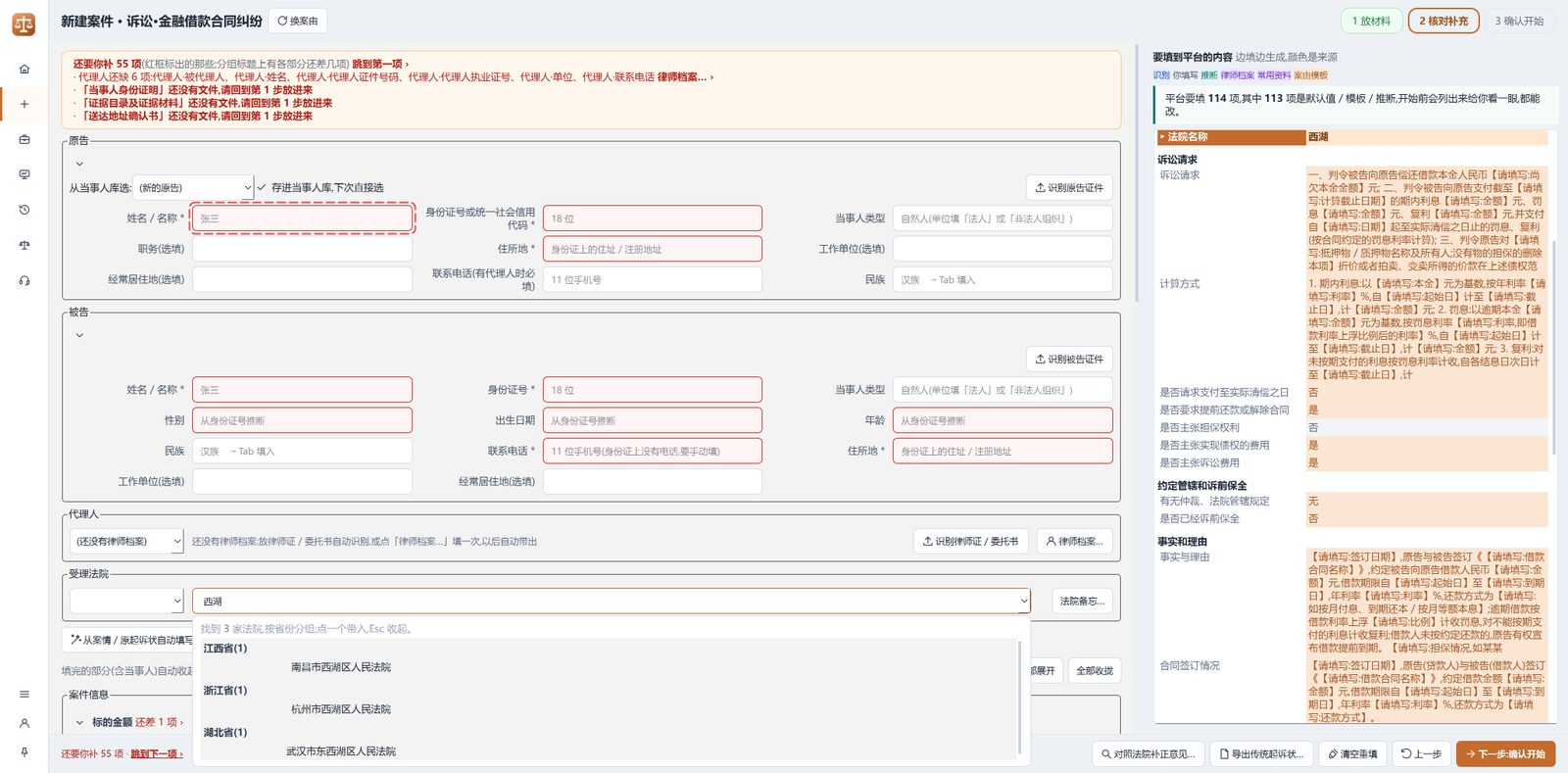
Single-case filing offers two routes side by side. Structured filing covers 33 civil first-instance case types, 3 kinds of enforcement application and pre-litigation property preservation. Standard filing handles any other civil case type: upload your own complaint, or let the platform generate one.
Recourse claims, small loan contracts, insurer subrogation, labour-service and guarantee contract disputes, for example, can all go through standard filing.
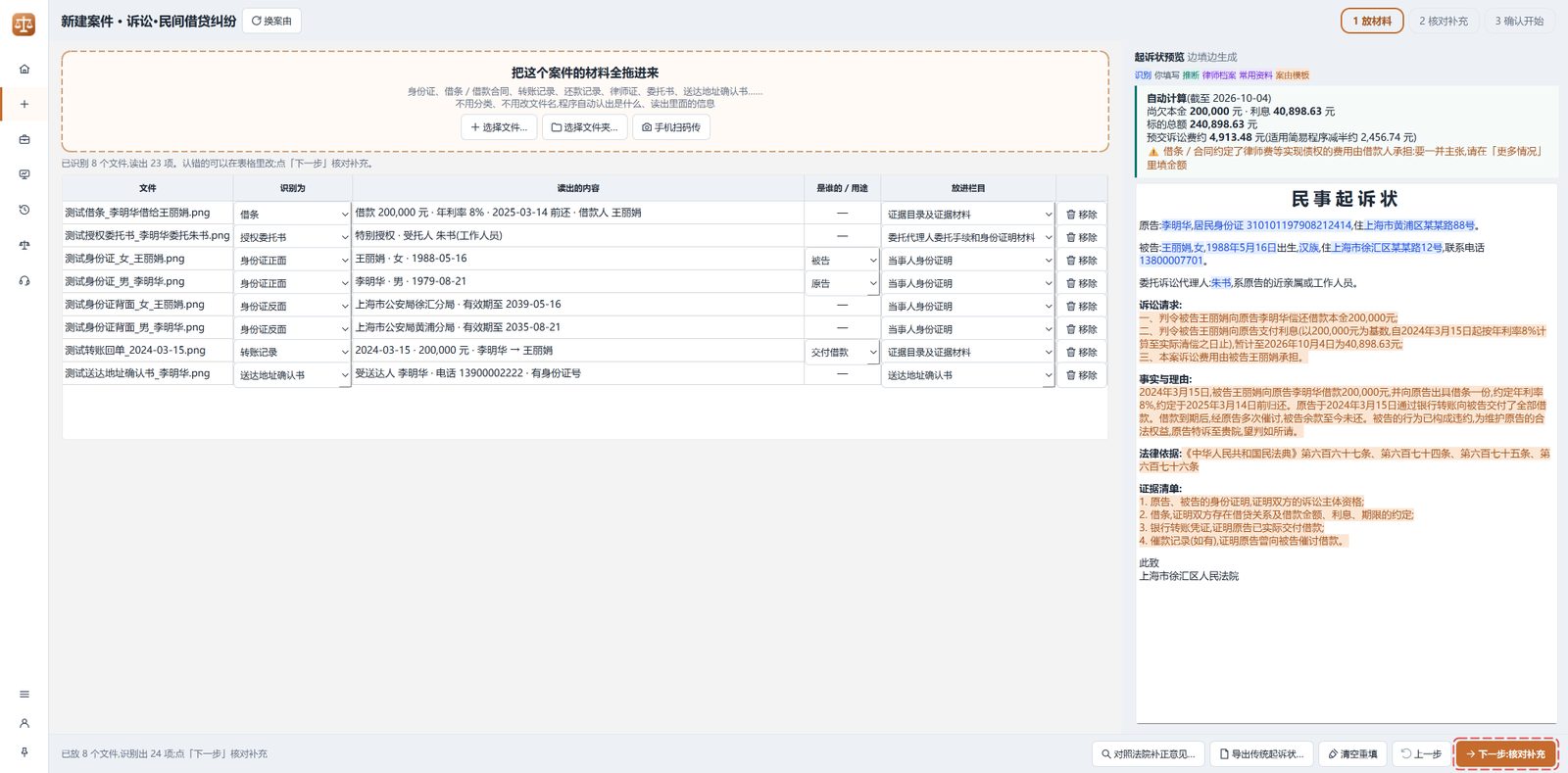
Add documents, then review
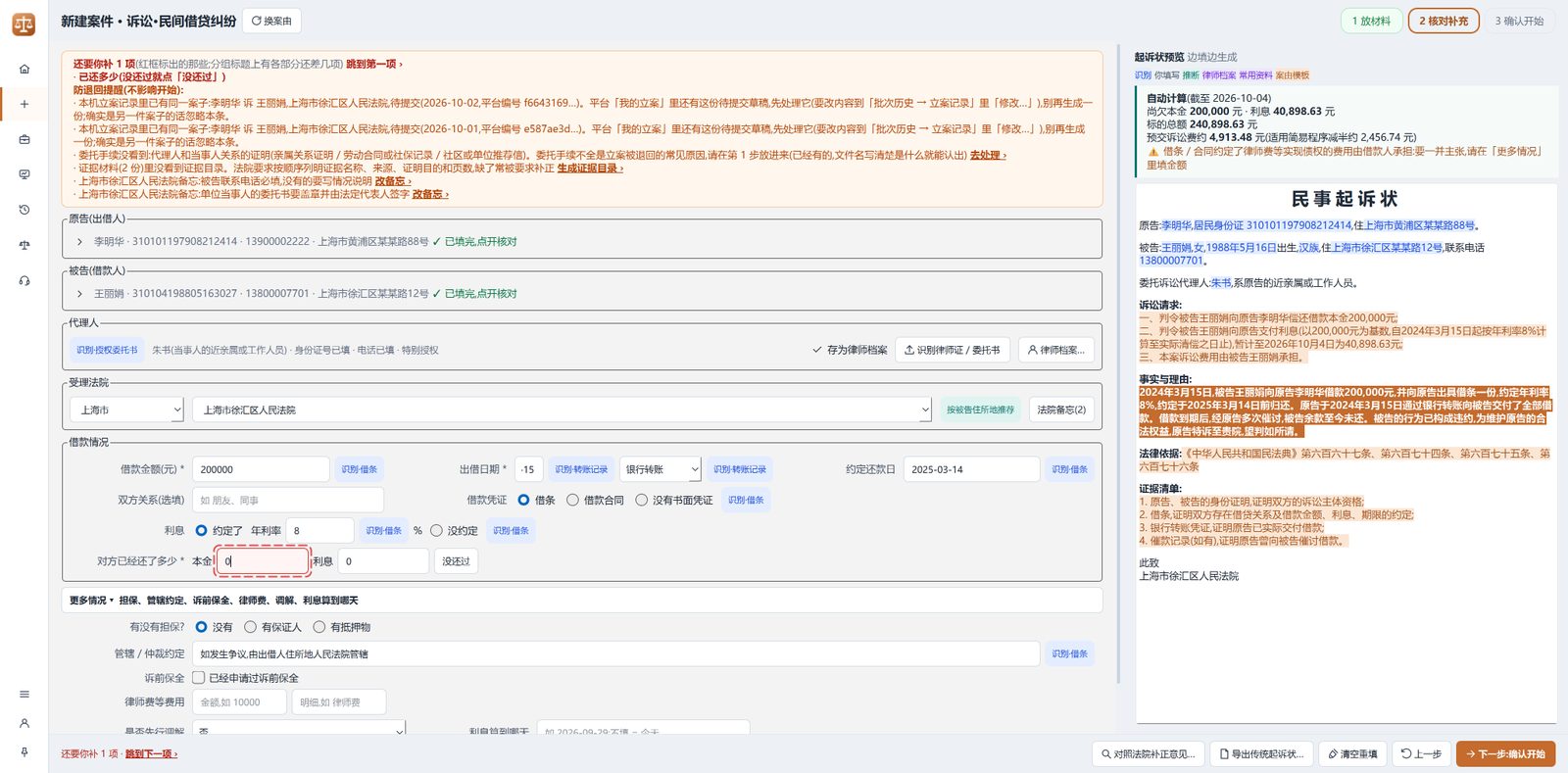
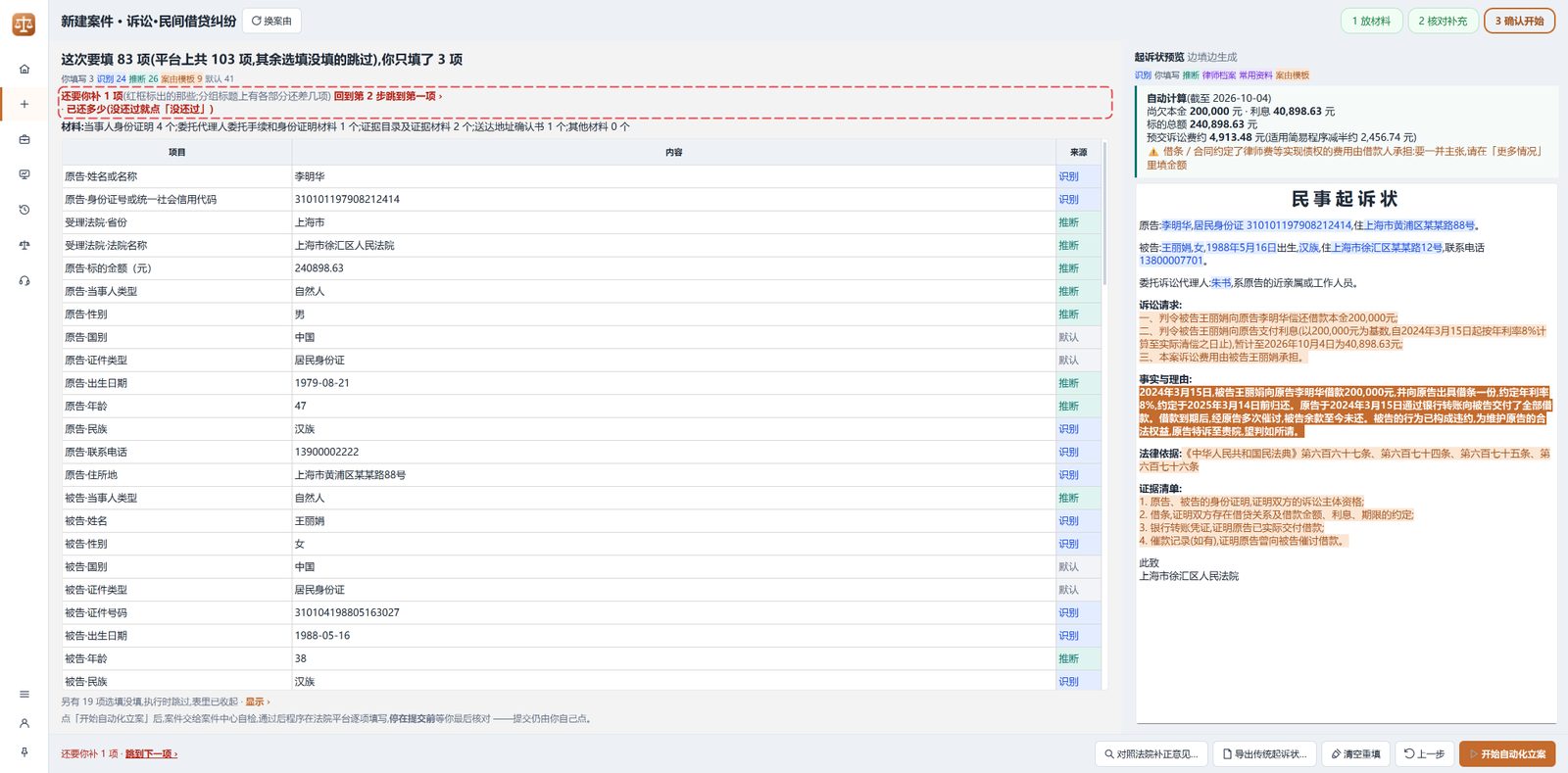
Drag in all the documents for the case, or scan a QR code to send photos straight from your phone. No sorting or renaming needed: Tingping recognises ID cards, IOUs, transfer records and powers of attorney, reads them, and fills in the parties, agents, court and facts. Each field is marked with the document it came from. You only add what the documents don't contain.
An existing complaint can be imported from Word or PDF, photographed (several pages at once) or dictated. Interest, the amount in dispute and court fees are calculated automatically; the court is suggested by the defendant's address and can be searched by Chinese name or pinyin initials.
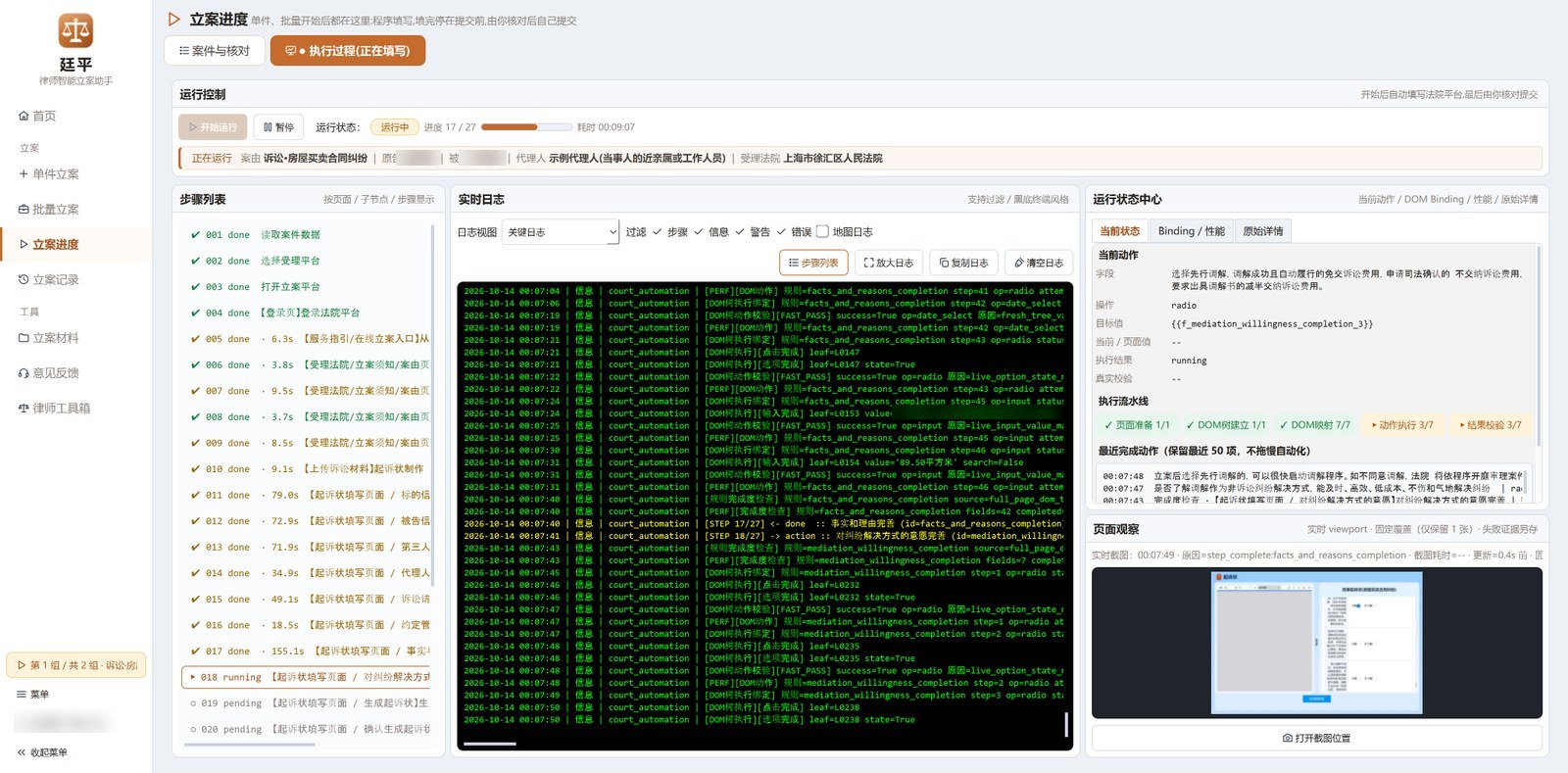
Start filing
First, a local self-check runs through common rejection reasons (jurisdiction, document format, scan quality, file size and required elements), lists what might be sent back and how to fix it, and checks your court account for a stored signature. Then Tingping opens the court platform in a browser, fills in each field, uploads the materials and generates the complaint. When a login is needed it asks you to log in in the browser; the program never stores your account. If you touch the page, close the browser or lose the connection, click “Continue” to resume where it stopped. The case is not filed twice.
It stops before the “Submit” button. In Filing progress you see how far each case has got, review each one and submit it yourself. On submission it keeps a screenshot of the submission page with the time, then follows the 7-day review, with reminders for fees, correction deadlines and overdue reviews; rejection notes from the platform are logged automatically, and unclear rejection reasons are explained.
Step-by-step instructions, including batch filing and enforcement conversion, are in the user guide.
Demo video
5 minutes 10 seconds, from adding documents to stopping before “Submit”, covering single cases, batches and enforcement conversion. Recorded in the real software (Chinese UI, Chinese voice-over) with sample data.
Batch filing and filing materials
Import from Excel and fix errors in the app
Fill in the Excel template for the case type and import it in one go. Several sheets and several case types can be imported together. View the data inside the app by case or as the original sheet; problem cells are highlighted in red, and you can fix them on the spot and write them back to your Excel file.
Firm letters and powers of attorney generated in one batch are split by party and attached to the right cases. Once the self-check passes, cases are filed one after another, each stopping before “Submit”, and you review and submit them in Filing progress. After judgment, the whole batch can be converted into enforcement applications in one step.
On first use you can click “Try with samples”: 20 fictional credit-card and 20 fictional bank-loan cases go through import, self-check and a simulated fill. It does not connect to the court platform, needs no login and is not counted.
How to prepare the Excel sheet and attachments for bank-loan, credit-card and property-fee cases: batch filing guide.
Filing records and enforcement conversion
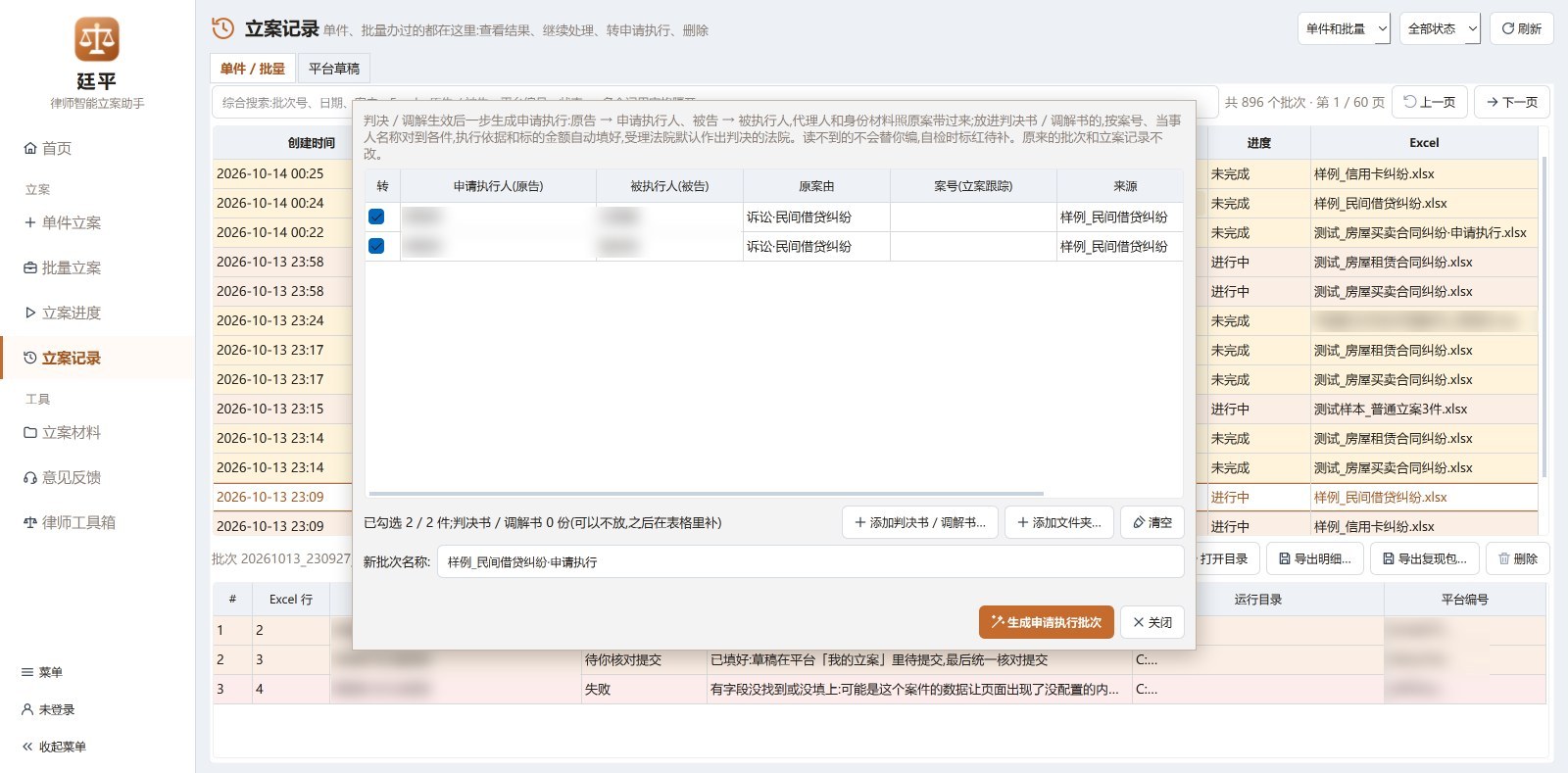
Every case filed, singly or in a batch, is kept in Filing records, where you can see results, continue unfinished cases and export details.
Once a judgment or mediation becomes effective, select the batch and click “Convert to enforcement”: plaintiffs become applicants, defendants become respondents, and agents and identity documents carry over. Add the judgment or mediation document and the basis for enforcement and the amount are filled in; the original case number is normalised to the format the platform expects, however it was written.
Filing materials and evidence lists
Drop in the materials your client sent: they are sorted the way courts require, given clear names and merged into PDFs. Drag to reorder evidence and the page numbers and evidence list update with it; generate a paginated evidence PDF and an evidence list in Word in one click.
WeChat chat screenshots are split into chat and transfer pages and turned into a PDF with a table of contents, recordings are transcribed, long scans are split by person, and unsigned or unsealed documents are flagged. Before upload, non-compliant file names are fixed and files are compressed or split to each court's size limit.
Feature overview
Filing
- Structured filing: 33 civil first-instance case types, 3 kinds of enforcement application, pre-litigation property preservation
- Standard filing for any other civil case type: upload a complaint or have the platform generate one
- 3,494 courts nationwide, suggested by the defendant's address
- Jurisdiction helper: lists the courts you can sue in, with the legal basis
- Pre-submission rejection-risk check; rejection reasons explained; stored-signature check
- Stops before “Submit”; the lawyer reviews and submits
Documents
- Recognises IDs, business licences, powers of attorney, IOUs, contracts, transfer records, judgments and more
- Imports existing complaints: Word, PDF, photos (multi-page) or dictation
- Every extracted item shows its source; correct mistakes directly
- Templates for claims and facts; interest, amount in dispute and court fees calculated
- Exports a traditional complaint (Word); structured complaints for private lending, bank loans and credit cards
Batch & progress
- Excel import: several sheets and case types at once
- View the sheet in the app, problem cells in red, write fixes back
- Continuous filing after self-check; review and submit case by case
- One-step conversion to enforcement after judgment
- Submission records kept; reminders for the 7-day review, fees and correction deadlines
- Try it first with 40 sample cases (no platform connection, not counted)
Materials & toolbox
- Sort, rename and merge filing materials into PDFs
- Drag to reorder evidence; page numbers and evidence list update automatically
- Calculators for court fees, interest, deadlines and lawyer fees
- Document comparison, PDF tools, bank statements to Excel
- File redaction with side-by-side review
- All toolbox work is done on your PC
Field-by-field requirements for each supported case type: supported case types.
Boundaries & security
These are the questions lawyers usually ask before handing cases to software.
- It never submits for you
- The program fills in up to the “Submit” button. The final click is always made by the lawyer in the browser; there is no auto-submit switch anywhere in the app.
- It never stores your court account
- There is nowhere in the app to enter your court username or password. When a login is needed, you log in yourself in the browser the program opens; if the session drops, it reminds you to log in again.
- Case data stays on your PC
- Complaints, case sheets and filing records are stored locally, encrypted for the current Windows user, and are not uploaded to any server.
- Cloud OCR and AI only with your consent
- You are asked separately the first time. If you agree, document images or text are sent encrypted to the recognition or language-model service and the results come straight back to your PC; the server keeps nothing. If you decline, recognition runs locally.
- No legal decisions
- Templates, formulas and reminders lay out common practice and typical requirements; you decide whether and how to use them. The software does not decide how a case should be handled.
- Automatic error reports
- When something goes wrong, the app sends us a redacted error report so we can reproduce and fix it; you can also tell us directly through Feedback in the app.
The only things our server handles
- Account login and subscription status; version checks and update downloads (update manifests are signature-checked, packages verified byte by byte)
- With cloud OCR on: document images are sent encrypted to Tencent Cloud for recognition and not kept afterwards
- With AI features (complaint import, filling from the case description, checking claims): the text, photos or recordings you choose are sent encrypted for recognition / model analysis; results return to your PC and are not kept
- WeChat notifications: only “case n of N, batch number”
- Usage statistics: device ID, software version and usage time (can be turned off in Data & privacy); error reports and feedback you send yourself (automatically redacted)
Download
Tingping v1.99.13 · released 2026-11-03 · Windows 10 / 11 (64-bit) · runtime included · Chinese interface
Download the installer · 99 MBSlow or not starting? Try the backup link, or copy the link into a multi-threaded download manager.
- Double-click the downloaded installer and follow the prompts (installs for the current user; no administrator rights needed).
- If Windows shows “Windows protected your PC”, click “More info” → “Run anyway”.
- Open Tingping from the desktop icon. New versions are offered inside the app and install in one click.
SHA256 f0c3615e4d8bf898f0b84e7b3c8edf81e6184f72a708a8bfa617911ef976f4f0
FAQ
Will it submit filings automatically?
No. On the platform it stops before “Submit” and lets you know; you review each case's page in Filing progress and click Submit yourself.
Does it work outside China, or in English?
No. Tingping works only with courts in mainland China through the national online court filing platform (人民法院在线服务平台), and the software interface and generated documents are in Chinese. It is built for lawyers and paralegals who file cases there.
Do failed filings use up my quota?
No. A case is only counted when it is successfully submitted. If it fails part-way, or you decide not to submit after reviewing, the count is returned automatically.
Are my case materials uploaded to your servers?
No. Complaints, case sheets and filing records stay on your PC; interest calculations and complaint generation happen locally. Only when you turn on cloud OCR or use an AI feature are the relevant images, text or recordings sent encrypted to the recognition / model service; results come back to your PC and the server keeps nothing.
Do I have to give the software my court account?
No. There is no place in the app to enter it. When filing starts, the program opens a browser and you log in there yourself. While the app is open it keeps the session alive and tells you if it drops.
Which case types are supported?
Structured filing: 33 common civil first-instance case types (each verified on the real platform), enforcement applications (based on judgments / mediation documents, arbitral awards or notarised debt instruments) and pre-litigation property preservation. Any other civil case type goes through standard filing (for example recourse, small loan contracts, insurer subrogation, labour-service and guarantee contract disputes) by uploading a complaint or having the platform generate one. Details per case type: supported case types.
I've already written the complaint. Can I use it?
Yes. Import it from Word or PDF on the review page; photograph a paper copy (several pages at once); or dictate it. Tingping reads out the parties, claims, facts and reasons, shows the source of each item and fills them in only after you confirm. Anything you have already filled in is left alone.
Can it handle large batches?
Yes. In Batch filing, download the Excel template for the case type, fill it in and import it; several sheets and case types can go in together. Review and fix the data in the app and write it back to Excel; after the self-check, cases are filed one after another, each stopping before “Submit” for you to review in Filing progress. After judgment, the batch can be converted to enforcement applications in one step.
Can I try it without logging in?
Yes. Use the sample data in single-case filing or “Try with samples” in batch filing and click Start without logging in: the app plays an auto-fill demonstration that fills every field and stops before “Submit”, without connecting to the court platform or counting anything. Log in with WeChat when you want to file your own cases.
Do I need to install Python or anything else?
No. The installer includes its own runtime. You need Microsoft Edge or Chrome (Windows usually comes with Edge).
How do updates work?
The app checks for new versions when it opens; once you confirm, the update downloads in the background and a restart of a few seconds finishes it. No reinstall is needed. When the court platform changes, only the configuration for the affected case types is updated.